How to Turn Your Study Materials into Practice Quizzes with GetGPT's Quiz Generator
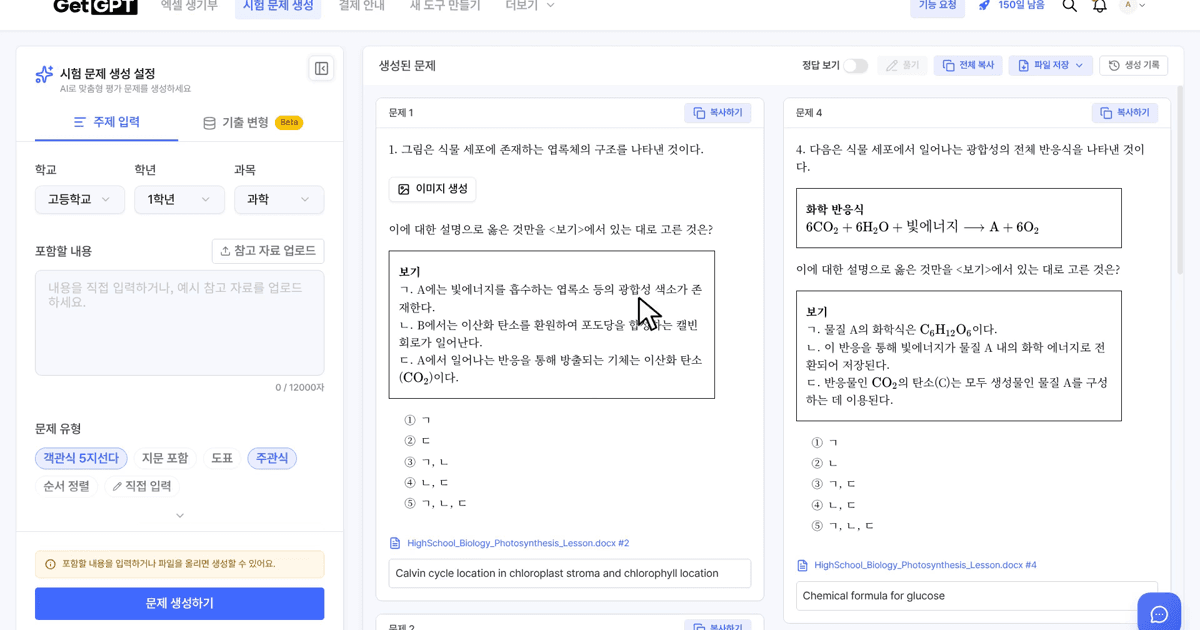
Making practice questions by hand takes hours. GetGPT's Quiz Generator does the heavy lifting for you: give it your study material, and it writes quiz questions for you, complete with answers and explanations. You can solve the quiz right on the page or save it as a file.
This guide walks you through the whole flow, from your first upload to a finished quiz.
Note: the screenshots and clips in this post come from our Korean-language demo of the same feature. The English interface has the same layout with English labels.
What the Quiz Generator can do
- Turn your own material - lecture notes, textbook chapters, handouts - into practice questions
- Write different kinds of questions: multiple choice, short answer, ordering, chart/table-based, and questions with a reading passage
- Match your level: pick the school level, grade, subject, and difficulty (Low, Medium, High, or Advanced)
- Show answers and explanations for every question, with references back to your source material
- Let you solve the quiz online with automatic grading, or save it as a PDF or Word file
Free accounts can generate up to 5 questions at a time. GetGPT Pass users can generate up to 10.
Step 1: Open the Quiz Generator
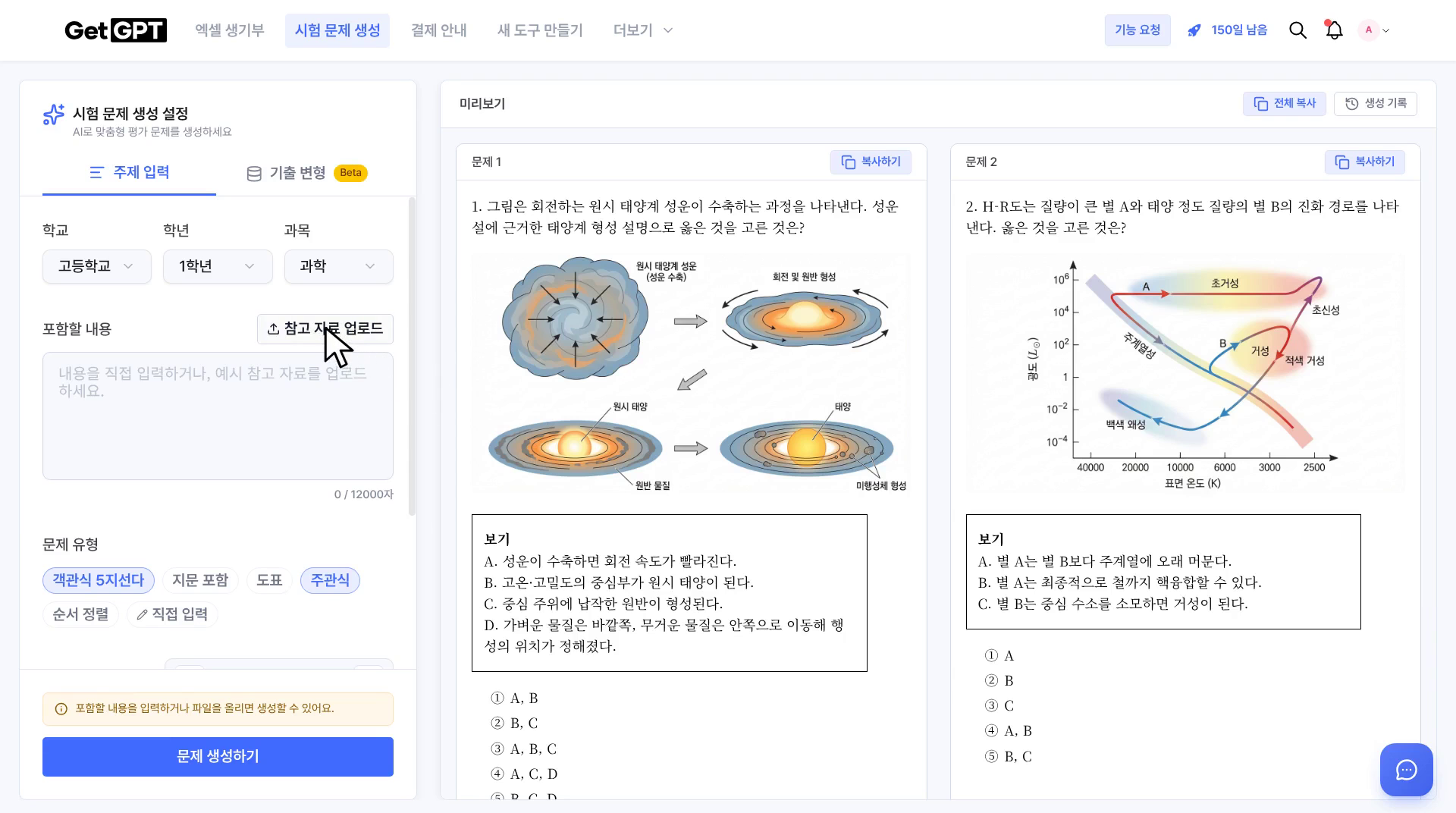
Head to getgpt.app/exam, or click Quiz Generator in the top menu on GetGPT. You'll see the settings panel on the left and a preview area on the right.
Step 2: Add your material
You have two options under Source Content:
- Paste text directly into the box (up to 12,000 characters) - great for notes you already have
- Upload Materials - attach a PDF, DOCX, or PNG/JPG image of your material
Once your file is attached, you'll see it as a chip in the source box, and a preview opens on the right so you can check that everything looks right.
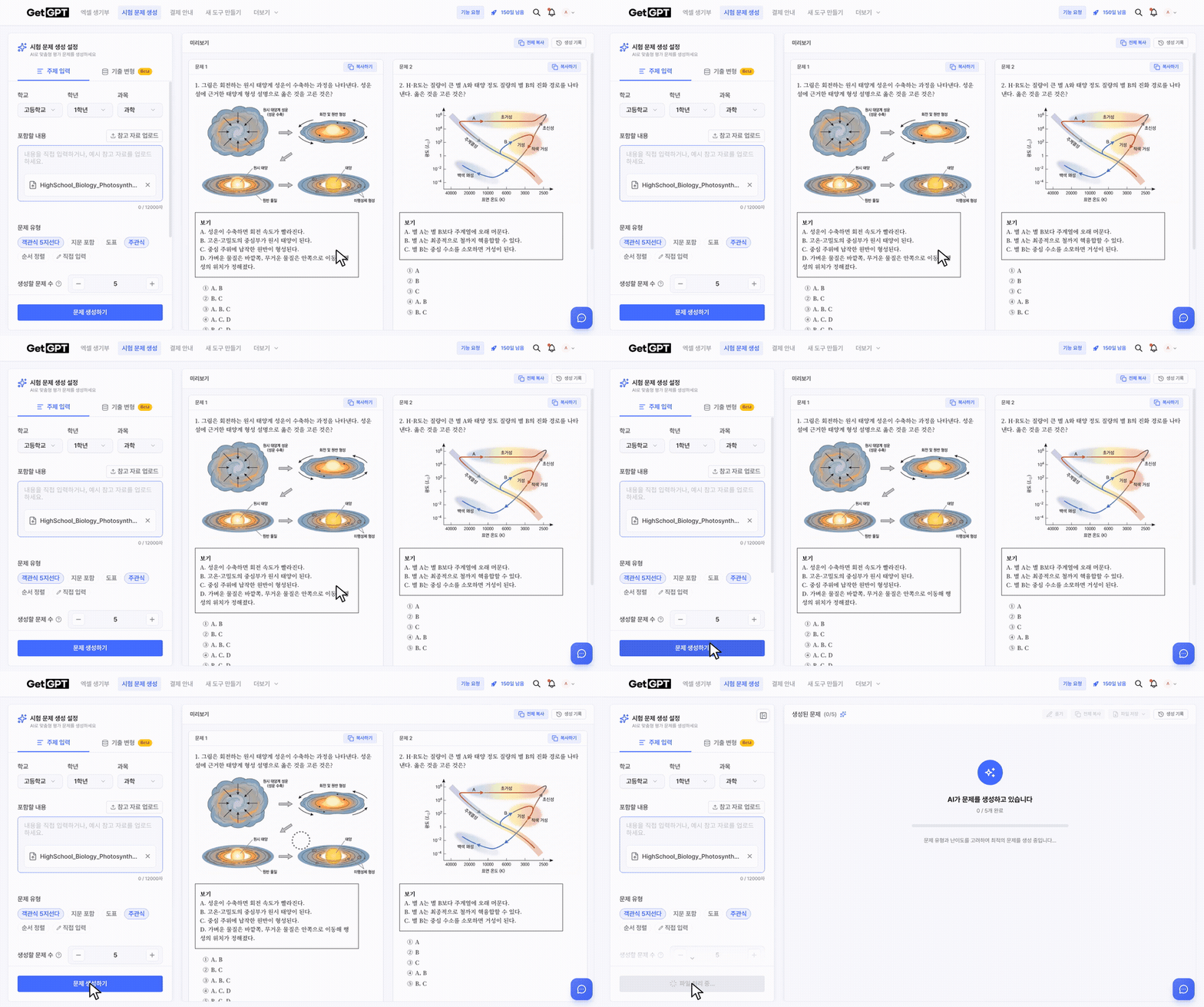
Step 3: Choose your settings and generate
Now tell the Quiz Generator what kind of quiz you want:
- School Level, Grade, and Subject - for example, High school, Grade 10, Science
- Question Type - Multiple Choice (5), Include Passage, Chart/Table, Short Answer, Ordering, or Custom Input. You can pick more than one.
- Number of Questions - up to 5 for free users, up to 10 with GetGPT Pass
- Difficulty - Low, Medium, High, or Advanced
- Include Images (Beta) - optionally add generated images to your questions
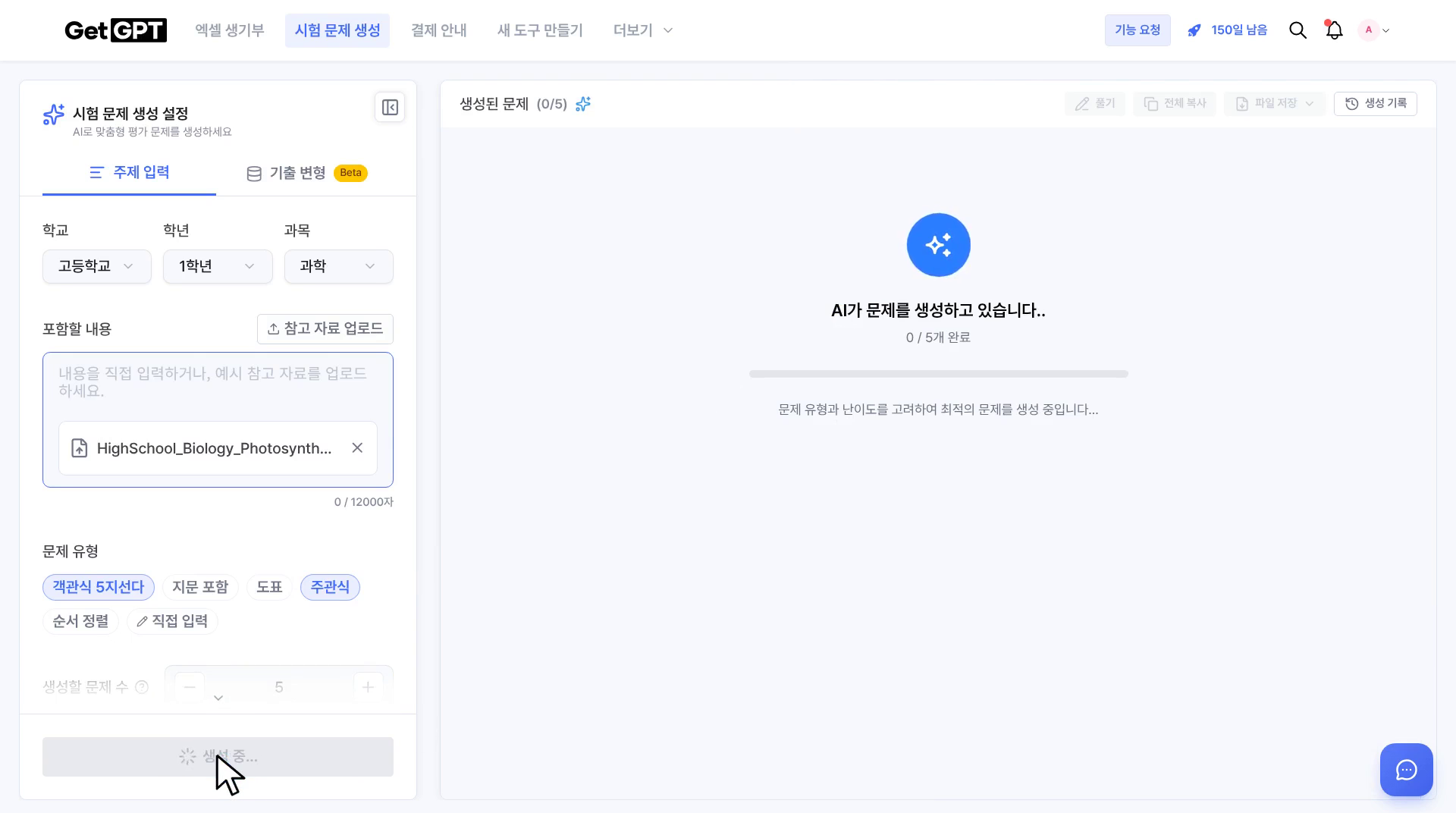
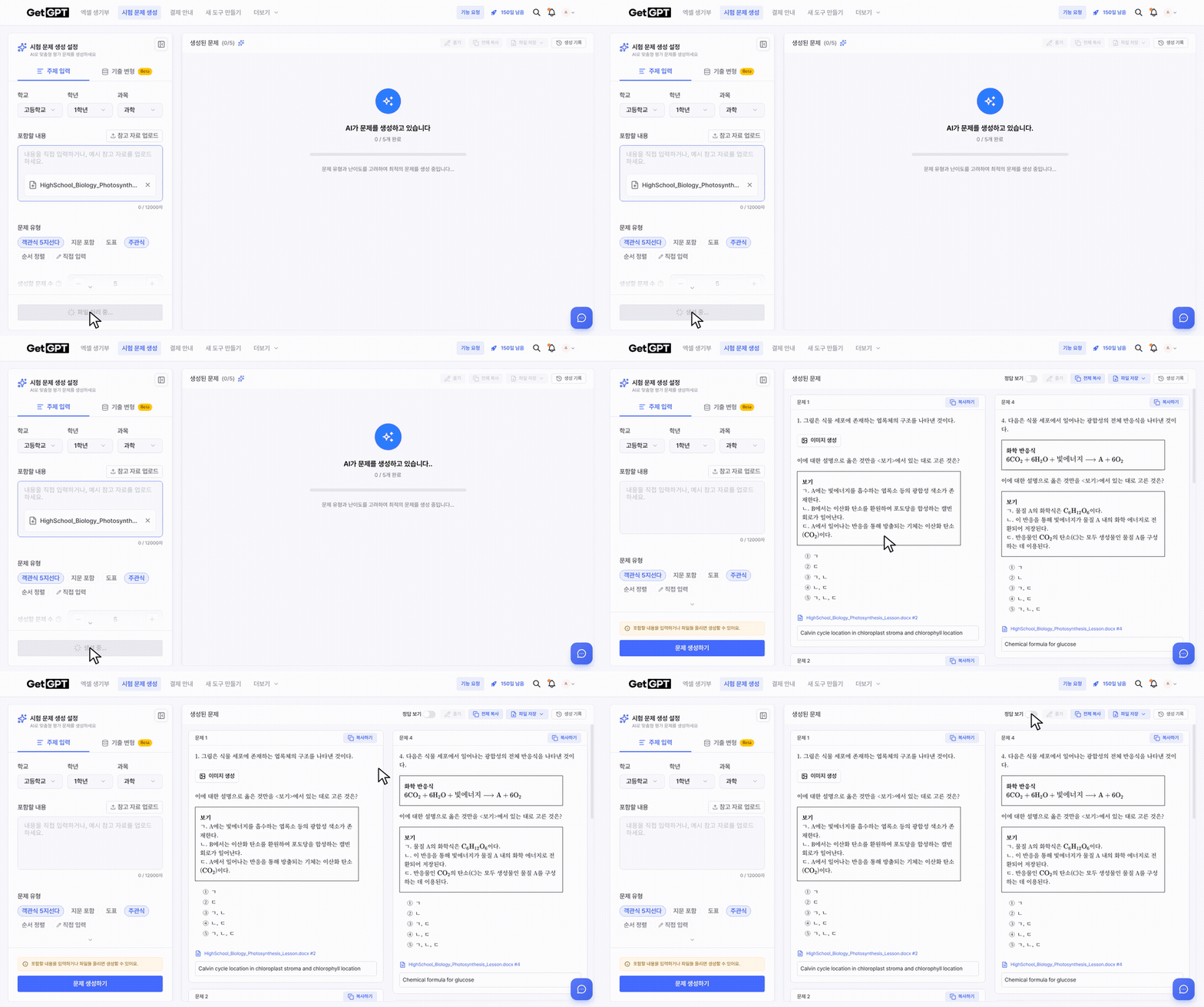
Then click Generate Questions and give it a moment. The progress indicator shows each question as it's finished.
Step 4: Review your questions
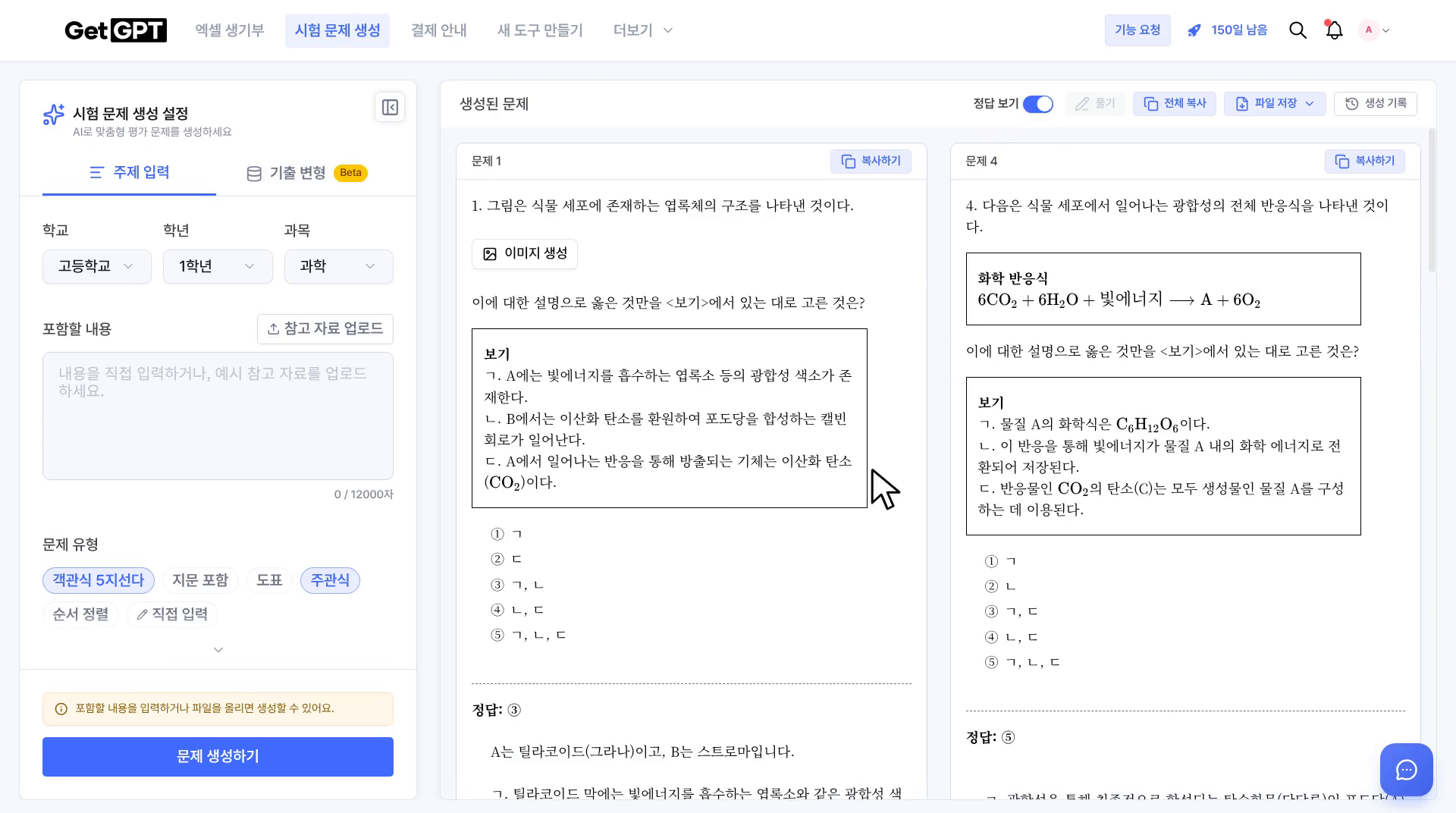
When generation finishes, you'll see the full question list. Toggle Show Answers to reveal the answer and explanation for each question. When a question is based on your uploaded file, the answer can show which part of your material it came from, so you can check it against the source.
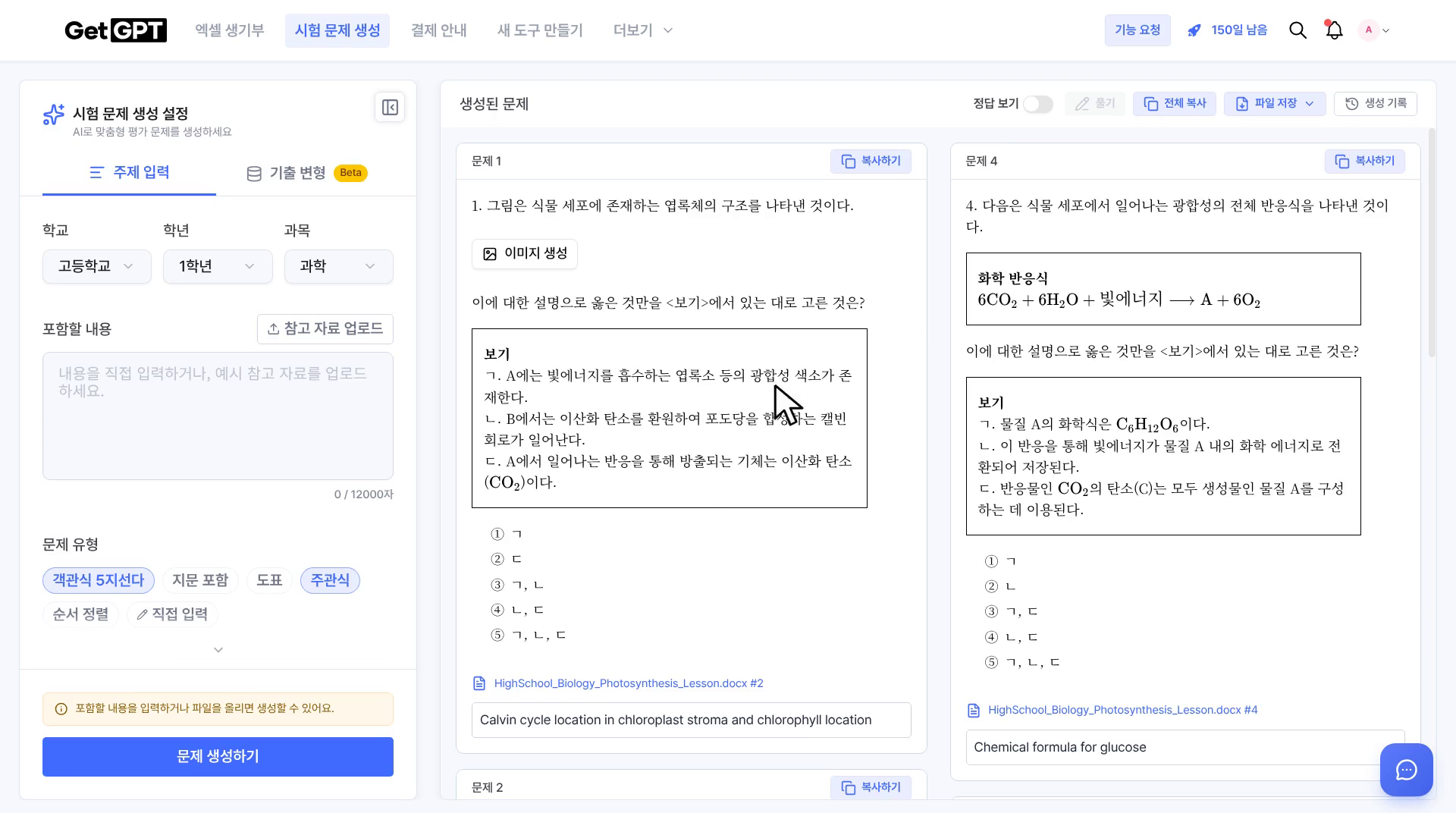
Here's the flow from clicking generate to reviewing the finished questions:
Take a minute to read the answers before you use the quiz. AI-generated questions are a study aid, and a quick review against your material is always worth it - especially before printing anything for a class.
Step 5: Solve it online or save it as a file
Your quiz is ready to use right away:
- Solve opens an interactive solving mode. Pick your answers, then click Grade to see your score. Reset starts you over.
- Copy / Copy All copies one question or the whole quiz to your clipboard.
- Save file exports the quiz as a PDF or Word document - handy for printing or sharing in class.
- Every generated quiz gets its own link (it looks like
getgpt.app/exam/abc123), so you can come back to it or share it. - History keeps your past generations in one place.
Have an old exam sitting around? The Past Exam (Beta) tab turns a past exam into fresh questions in the same style.
Tips for better questions
- Use readable material. Clean, well-structured text gives the best questions. If you're uploading a scan or a photo, make sure the text is sharp.
- Stay focused. A chapter on one topic gives more focused questions than a whole textbook.
- Match the difficulty to your goal. Start with Medium, then go High or Advanced when you want a challenge.
- Review before you print. Check answers and explanations against your source material first.
Ready to make your first quiz? Open the Quiz Generator and turn today's study material into practice questions in minutes.